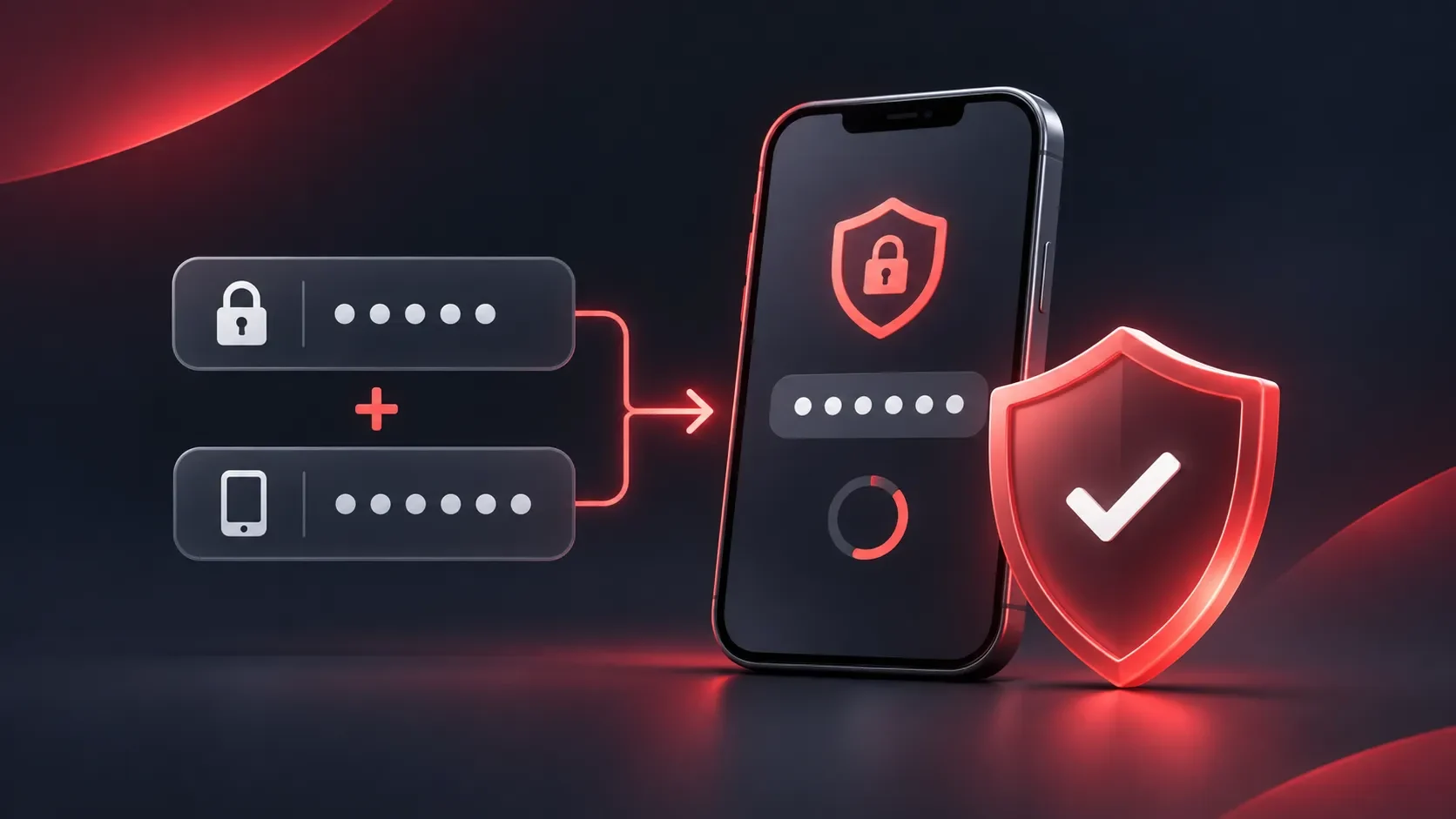
Strong password dey important, but phishing, data breach or device wey no secure fit still expose am. Two-factor authentication (2FA) dey add second check wen you Log in: na code wey authenticator app generate and wey dey expire afta short time. Dis guide explain how you fit turn am on, how you fit protect di setup, and wetin you fit do if you no fit access your code.
Quick summary
- Wen you Log in, 2FA dey ask for your password and code from authenticator app.
- Set am up only from official Deriv website or app afta you don Log in to your own account.
- Di QR code wey you use during setup na sensitive information: no take screenshot of am, share am or scan am on anoda pesin device.
- Deriv no go ask you for your password, 2FA code or oda one-time passcodes.
- If you lose access to your authenticator, contact official Deriv support instead of trying to bypass your account security.
Wetin two-factor authentication dey add to your Log in
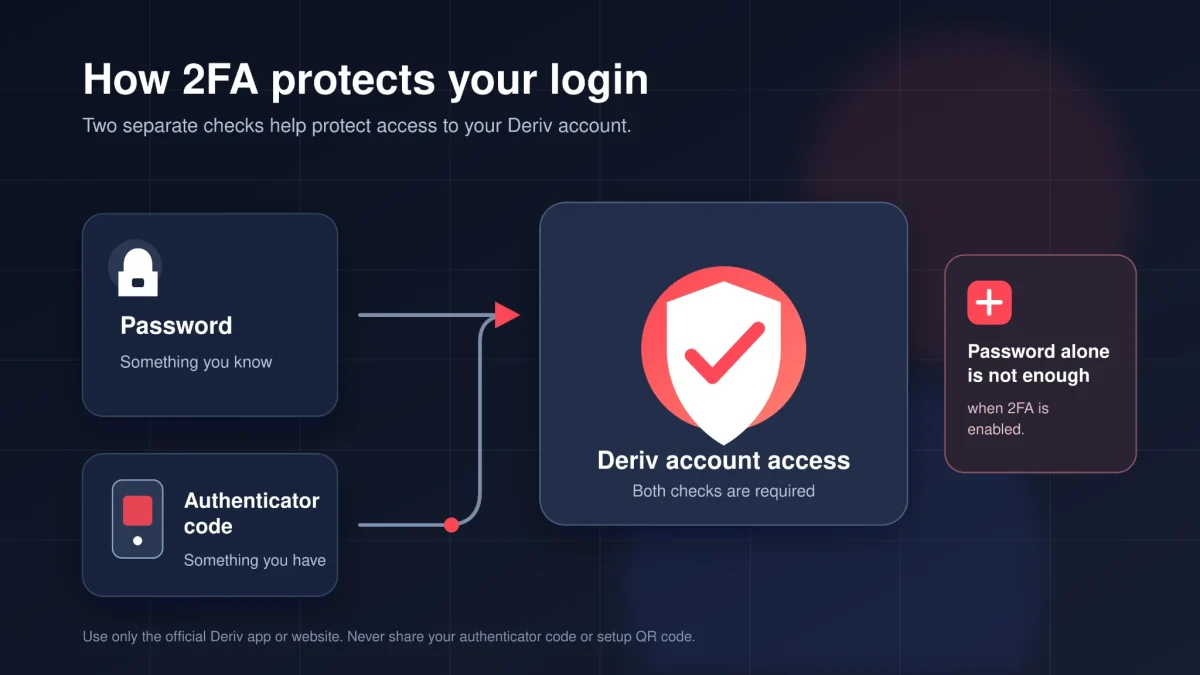
Two-factor authentication, or 2FA, dey verify your Log in wit two different factors:
- Something wey you know — your password.
- Something wey you get — current code from authenticator app on device wey you control.
Dis mean say password alone no dey enough to complete Log in wen 2FA dey active. Na extra layer of protection, no be replacement for unique password, secure email inbox or careful checks for phishing.
Wetin authenticator code be
Authenticator app dey generate short codes wey dey change wit time—usually six digits. During setup, di app dey store secret wey di QR code for your Deriv account represent. Di app go den use dat secret to produce di current code. Anybody wey get di QR code or im setup secret fit generate di same codes, so protect am as carefully as you go protect password.
Before you turn on 2FA
Take small time to prepare. If you do dis before you start, e go help you avoid losing access to your account later.
Use device wey you control
Install authenticator app like Google Authenticator, 1Password or Authy on phone or oda personal device wey get screen lock.
No install authenticator app on device wey you share wit oda pipo, and no ask anoda pesin to scan your QR code for you. If your phone support device encryption, biometric lock or strong passcode, turn on dose protections too.
Start from official Deriv address or app
Type home.deriv.com for your browser yourself, or open di official Deriv app. Be careful wit links for messages wey you no expect, sponsored search results and domains wey look like di official one. Check di browser address before you enter your email address, password or 2FA code.
Deriv no go ever ask for your password, private key or one-time passcodes. If anybody ask you to share code—even if dem claim say dem be support agent—na warning sign. Use di contact details wey dey our official website if you need help.
Keep your email account secure too
Your email fit be used for password resets and account notifications. Use unique password for dat email account, turn on di security features wey dey available and check for recovery addresses or sign-in activity wey you no recognise. 2FA dey strongest wen your email and device dey protected too.
Turn on 2FA for your Deriv account
Di email journey give dis route: Account settings > Security > Two-factor authentication. Labels fit change as di account interface dey updated, so follow di 2FA or security control wey you see on your screen.
Step 1: Log in securely
Open di official Deriv app or type home.deriv.com for your browser. Log in to di account wey you wan protect. No complete dis step on public network or network wey no secure if you no trust di connection or device.
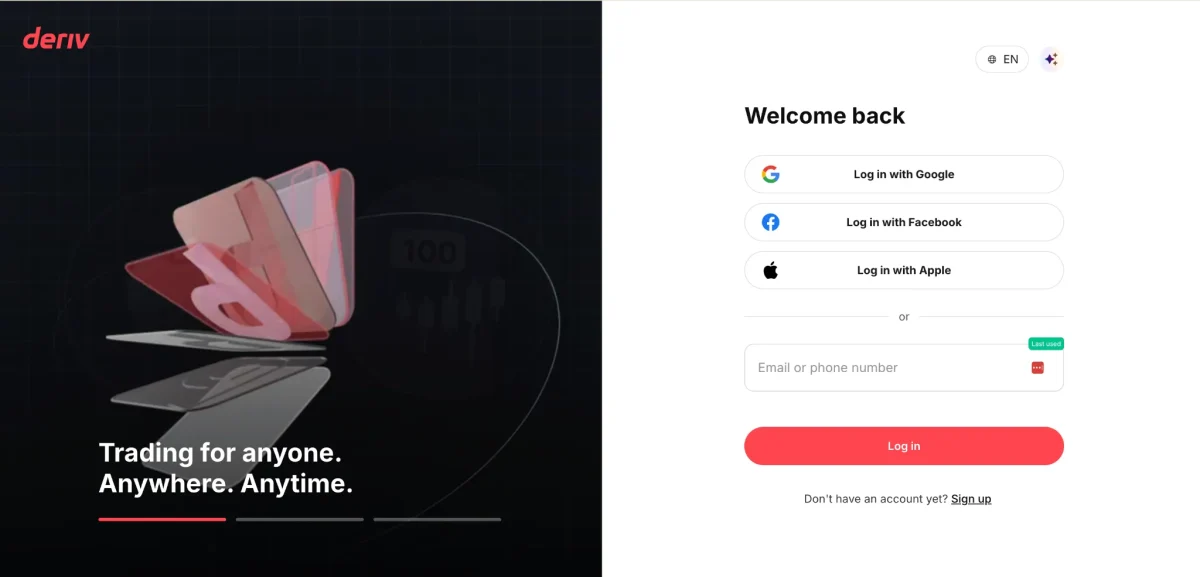
Step 2: Open di 2FA setup control
Go to Account settings, den Security, and select Two-factor authentication. Read di information on di screen before you continue. You suppose see option to begin setup and QR code or similar setup method.
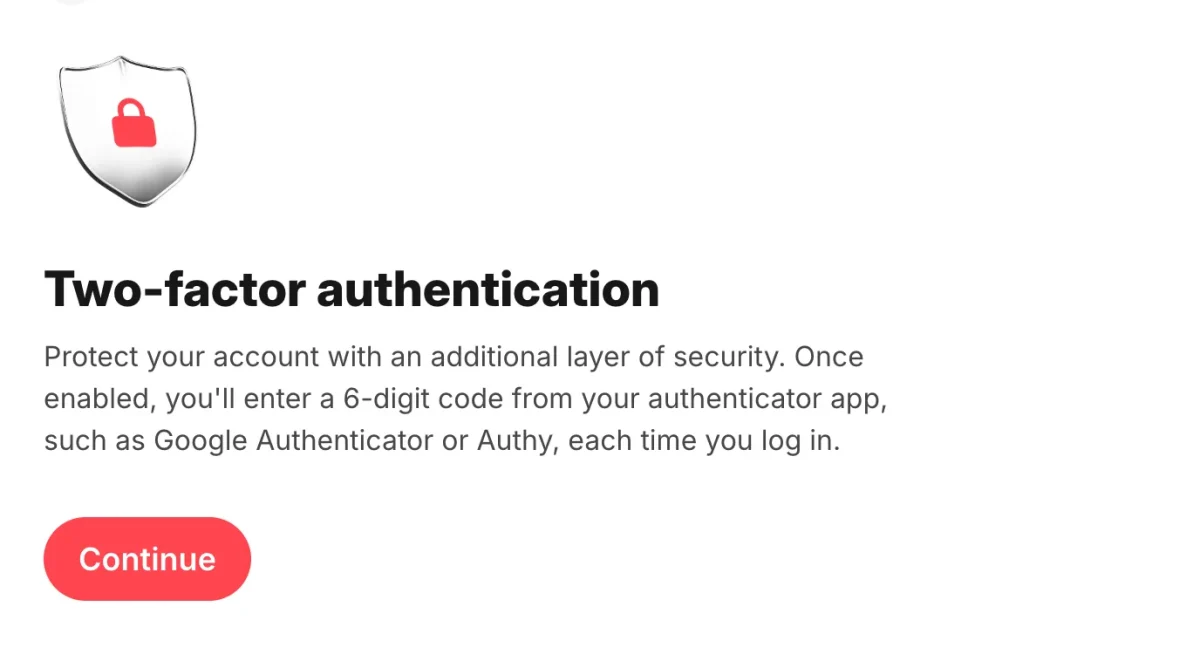
Step 3: Add di account to your authenticator app
On your personal device, open your authenticator app and choose di option to add account. Scan di QR code wey Deriv display.
No save screenshot of di QR code for your photo library, send am through messaging app or store am for document wey no get protection. Di QR code na di setup secret for generating your account codes.
If di app no fit scan di code, follow only di manual-entry option wey Deriv and di authenticator app display. No send di setup value wey dey displayed to anybody for help.
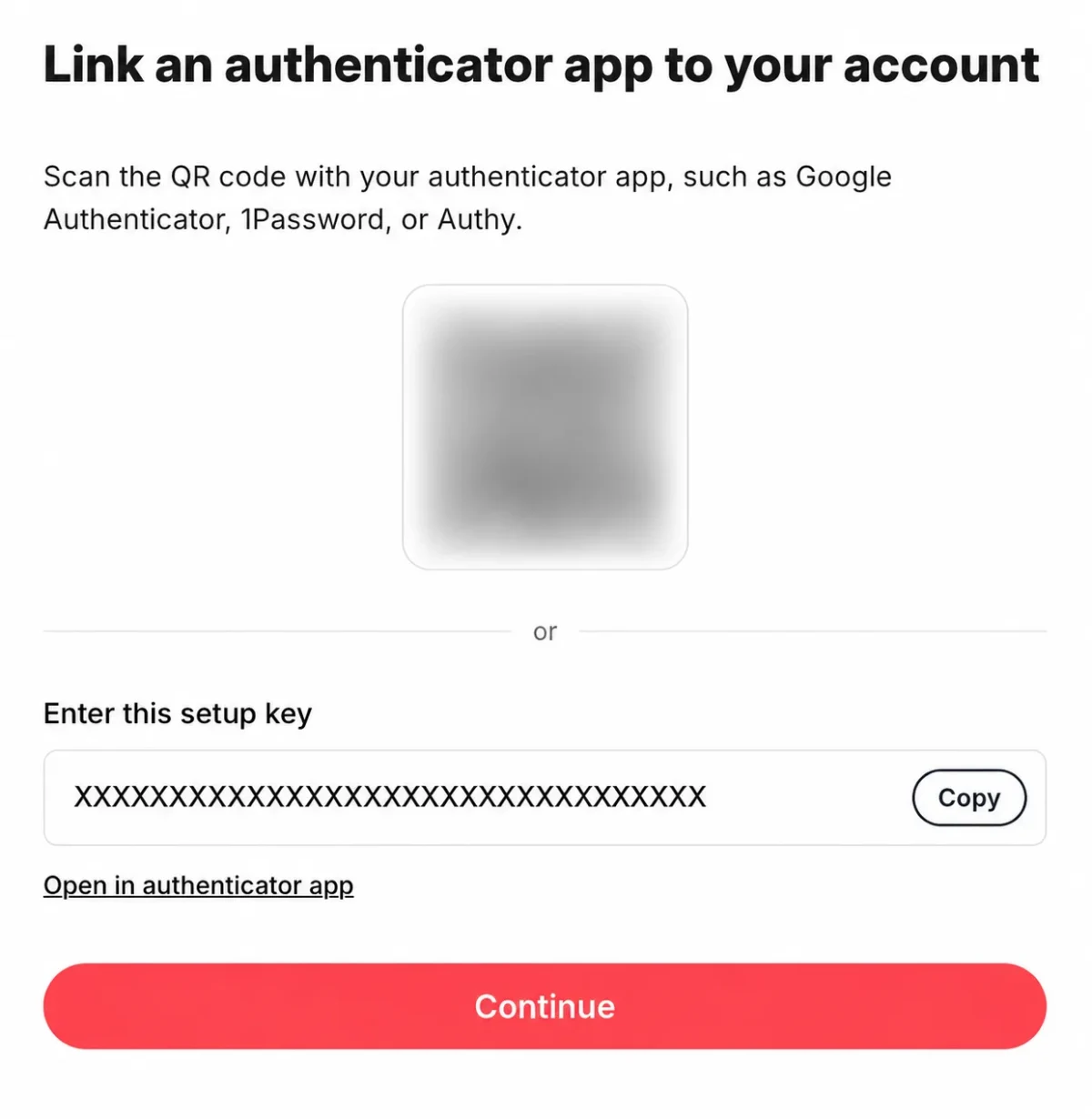
Step 4: Enter di current code and confirm
Your app go display di current code. Enter dat code for di Deriv confirmation field, den complete di confirmation on di screen. Wait until di account confirm say 2FA don turn on before you close di setup screen.
Di code dey change regularly. If dem reject code, wait make di next one appear and enter am carefully. Check say your device date and time dey set automatically; if di device clock no correct, e fit affect codes wey dey change wit time.
Step 5: Confirm say you fit use am next time
Afta di confirmation message appear, keep your authenticator app installed and your device secured. Wen you Log in for future, Deriv fit request di current code afta your password. Enter am only for di official Deriv Log in page or app.
Protect your authenticator app and recovery options
To turn on 2FA na only di first part of di process. Your authenticator app go become important part of how you access your account.
No share codes or setup secrets
Treat current authenticator code like password: na to enter am for di official Deriv Log in or settings flow, no be to share am wit anoda pesin. Legitimate support agent no suppose ask you to read code aloud, send screenshot or forward QR code.
Be especially careful if caller or message dey pressure you to act urgently, ask you to install remote-access software, or say dem must “verify” your account by making you share code. End di interaction and contact Deriv through official channel.
Plan for replacement phone
Before you change or reset phone, check di recovery and transfer options wey di authenticator app wey you choose offer. Follow di official instructions for dat app and keep any recovery information secure. No disable 2FA just because you dey change device unless you understand how to securely transfer or recover your account.
If you lose your phone or you no fit generate code again, use Deriv official support channels. Make you prepare to complete di account verification process wey support request. No try to guess di code repeatedly or use third party wey dem neva verify to recover access.
Wetin to do if you suspect say pesin don access your account without permission
Act quickly, but use only official channels.
- Change your Deriv password through di official website or app if you still fit access your account.
- Change di password for di email address wey dey connected to di account and review di security settings for di email.
- Review your 2FA setup and remove devices or sessions wey you no recognise, if di account provide controls to do so.
- Contact Deriv customer support through di official Help Centre or live chat if you no fit secure access yourself.
- No ever give your password, recovery secret or one-time code to pesin wey claim say dem fit “restore” di account.
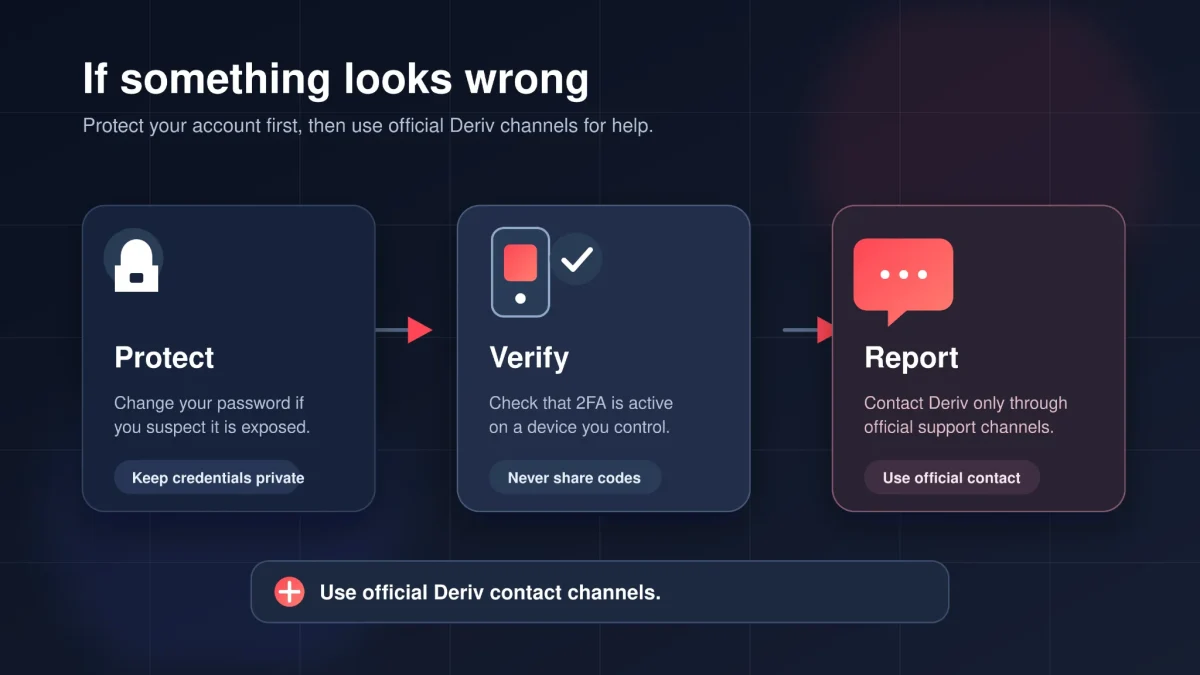
Tins to remember
- Wit 2FA, password alone no dey enough to log in, but dat no mean say e safe to share passwords or codes.
- No ever share di QR code or setup secret wey you use to connect authenticator app.
- Use lock for di device wey your authenticator app dey on.
- Enter codes only for official Deriv app or website afta you don check di address.
- If you lose access, contact official support instead of trying to bypass di security check.
Di next step
Open di official Deriv app or type home.deriv.com for your browser, den go to Account settings > Security > Two-factor authentication. Use your own authenticator app to scan di QR code and enter di current code wey e show. Once you don complete am, keep your app and device secure.
Security reminder: Deriv no go ever ask you to share your password, QR code, authenticator code, private key or oda one-time passcode.
Quiz
Wetin you suppose do if pesin wey talk say dem be Deriv support ask for your current 2FA code?
FAQs